Connecting Xiaomi thermometers to Home Assistant
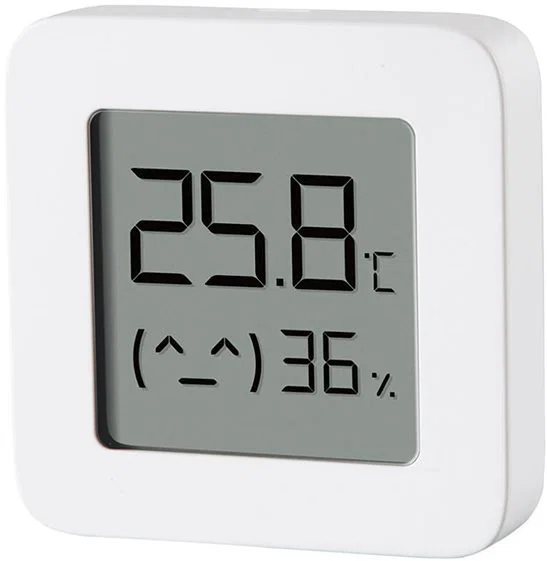
Some time ago, I bought a couple of those cheap Xiaomi thermometers, the small square ones with an LCD (model LYWSD03MMC). They cost around 4-5€ each. Recently, I got hooked on Home Assistant, and since I wanted to have an idea of the temperature in every room, I started wondering if I could connect them there too. I knew they could be paired with the Xiaomi app, but that’s not really what I wanted.
Luckily, I found out you can flash them with custom firmware. Unfortunately, the information on how to do it is scattered across forum threads, and I had to piece it together bit by bit. So in this post, I’ll go through all the steps in one place and explain why each of them is needed.
What is pvvx firmware?
Out of the box, the thermometer sends its readings over Bluetooth Low Energy, but the data is encrypted. To read it, Home Assistant needs a bindkey, which you can only get from the Xiaomi cloud after pairing the thermometer with the Mi Home app. So you’re tied to Xiaomi’s account and app, which is exactly what I wanted to avoid.
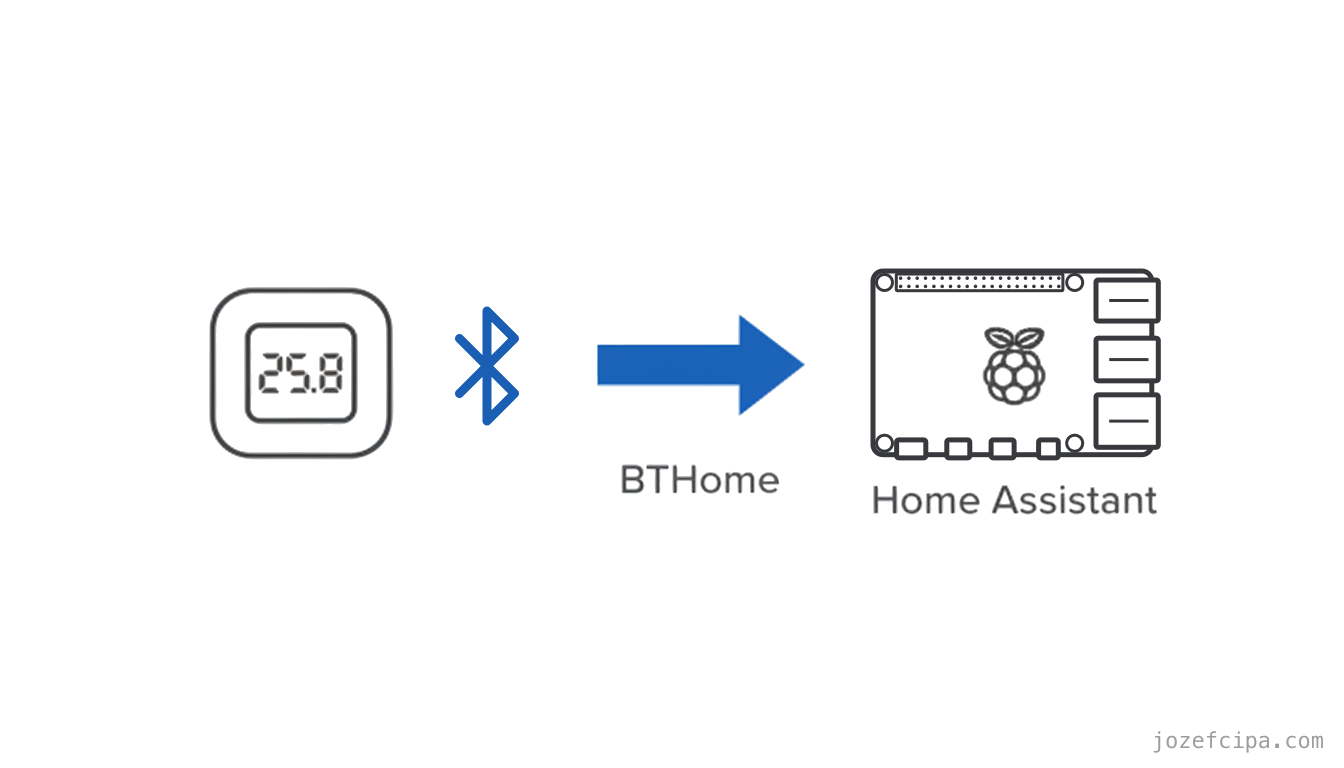
The pvvx firmware is a custom open-source firmware for these thermometers. Instead of the encrypted Xiaomi format, it can send the readings as BTHome, an open format for Bluetooth sensors that Home Assistant supports out of the box. The thermometer simply broadcasts temperature, humidity and battery level, and anything nearby can read them. There’s no cloud and no keys, and Home Assistant discovers the device automatically. On top of that, the firmware lets you configure things the stock one doesn’t, like how often it sends updates or what the LCD shows.
Step 1: Getting the token (newer units only)
Along the way, I learned that only newer units have this security mechanism in place. Before the flasher lets you into the firmware settings, it asks for a token and a bindkey, and the only place to get those is, of course, the Xiaomi cloud. So the irony is that you need the cloud once, to get rid of it forever 😅
If the flasher won’t let you in, you’ll first need to create a Xiaomi account and pair the thermometer with the Mi Home app. This registers the device in the cloud and generates the keys for it.
To get the keys out, there’s a Python script called Xiaomi Cloud Tokens Extractor. It logs in with your Mi account and lists all your devices with their credentials. The easiest way to run it is the one-liner from the README:
$ bash <(curl -L https://github.com/PiotrMachowski/Xiaomi-cloud-tokens-extractor/raw/master/run.sh)It asks you to pick a server region. I went with de, but any should work. For each thermometer, you’ll get a token and a ble_key (that’s the bindkey). Keep them around, because we’ll need them in the next step.
Step 2: Flashing the firmware
The flashing itself is done from a web page, the TelinkFlasher. It talks to the thermometer over Web Bluetooth, so all you need is Chrome (on desktop or Android).
The process goes like this:
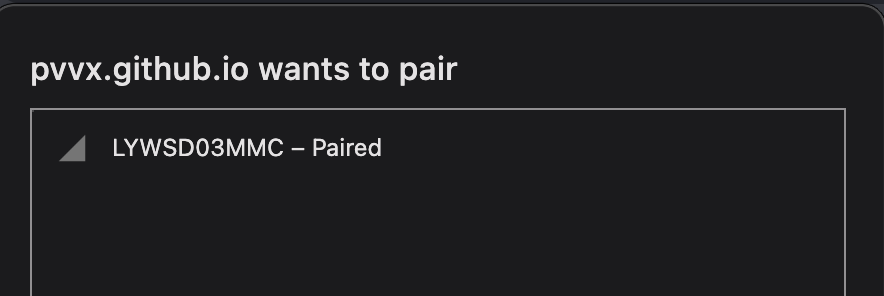
- Click Connect and pick your thermometer from the list. It shows up as a Bluetooth device starting with
LYW....
- Activate the device. If yours is one of the newer units, paste the token and bindkey from the previous step into the form first.
- Select the C_ustom firmware_ option from the menu and start flashing.
The whole thing takes just a couple of seconds. When it’s done, the thermometer reboots with the pvvx firmware and disconnects. So connect to it again, but this time look for a device starting with ATC....
Now the page shows the firmware settings. There’s a lot you can configure, but the one that matters is the advertising format, which needs to be set to BTHome. Apart from that, I only changed how often it sends updates, to 60 seconds.
Step 3: Adding them to Home Assistant
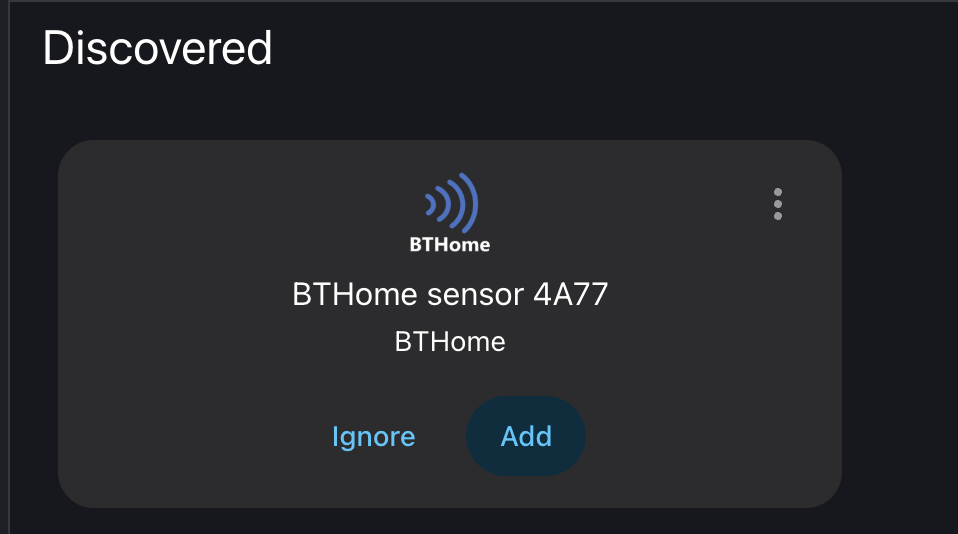
This is the easy part. Thanks to BTHome (the open format for Bluetooth sensors that Home Assistant supports natively), Home Assistant finds the thermometer on its own, as long as it’s within Bluetooth range. Go to Settings → Devices & services, and it’ll be waiting in the Discovered section, so just add it from there.
Step 4: ESPHome Bluetooth proxy
Bluetooth doesn’t have a great range to begin with, and in my case it was even worse. I have an external SSD connected to the Raspberry Pi over USB 3.0, which interferes with the 2.4 GHz band that Bluetooth uses. So the Pi could hear the thermometer in one room, but not in the other.
The fix is an ESPHome Bluetooth proxy.
💡 ESPHome is a framework for ESP32 (and similar) boards that turns a simple YAML config into firmware, without writing any code. You describe what the board should do, like reading a sensor, switching a relay or, in this case, acting as a Bluetooth proxy, and ESPHome builds and flashes the firmware for you. On top of that, it integrates natively with Home Assistant.
The Bluetooth proxy is a small ESP32 board that listens for Bluetooth messages around it and forwards them to Home Assistant over WiFi. Home Assistant then treats it like another Bluetooth adapter, and each sensor reports through whichever adapter hears it best.
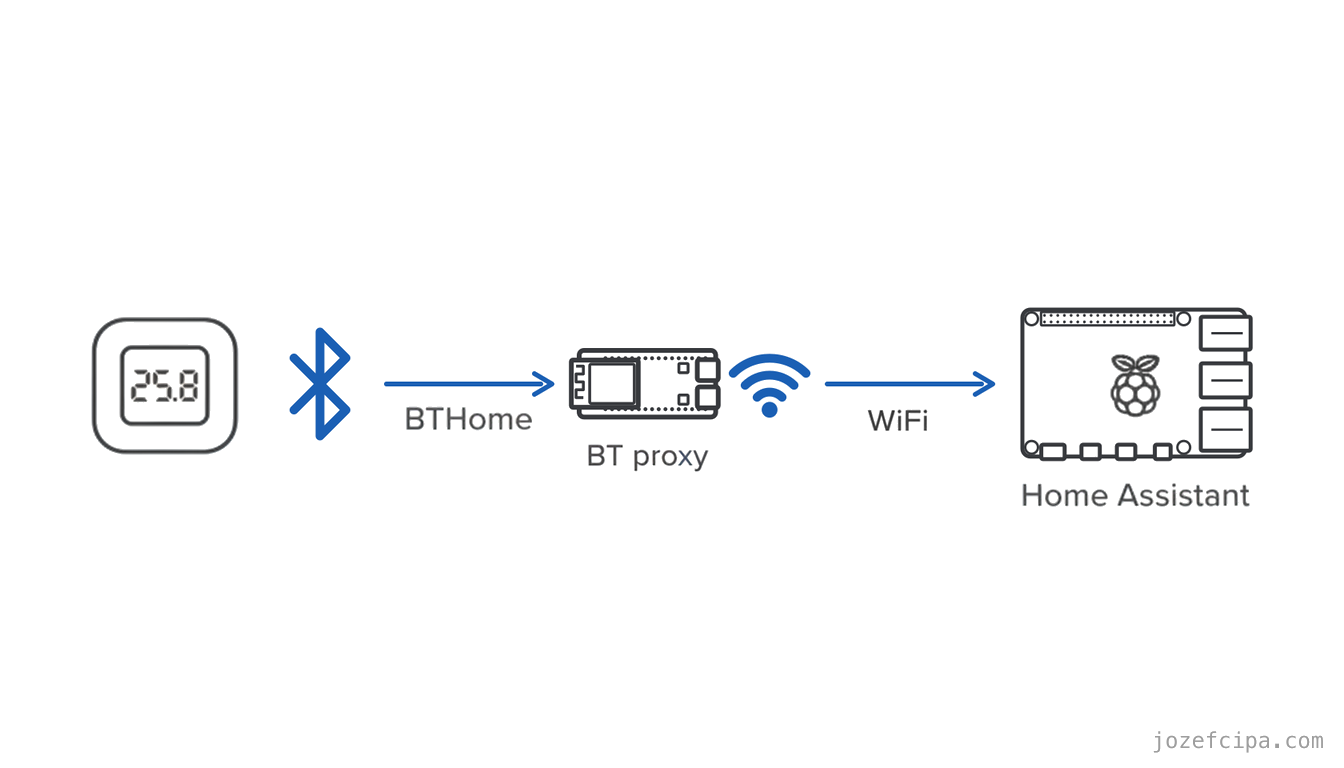
I used an ESP32-C6 devkit, but any ESP32 with Bluetooth will do. The config is pretty short:
esphome:
  name: bt-proxy
  name_add_mac_suffix: true
esp32:
  board: esp32-c6-devkitc-1
  variant: esp32c6
  framework:
    type: esp-idf
wifi:
  ssid: !secret wifi_ssid
  password: !secret wifi_password
logger:
api:
  encryption:
    key: !secret api_key
ota:
  platform: esphome
esp32_ble_tracker:
bluetooth_proxy:
  active: true
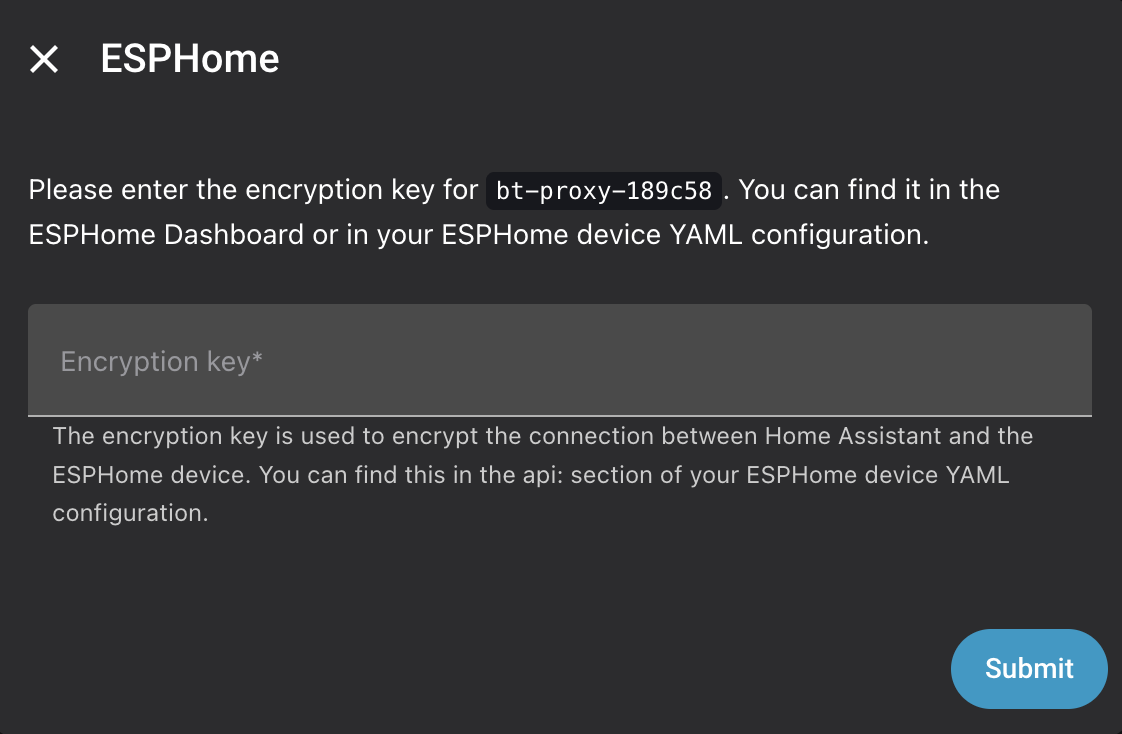
The WiFi credentials and the API encryption key live in a separate secrets.yaml file. Home Assistant uses the key to talk to the proxy, so keep it around.
A quick note on active. Devices like these thermometers only broadcast their readings, so the proxy just needs to listen, and active: false is enough. Other devices, like my Birdie CO2 monitor, need Home Assistant to actually connect to them to read the data. active: true lets the proxy open that connection on Home Assistant’s behalf.
To flash it, I used the ESPHome CLI on my Mac. You can install it with Homebrew (or pipx), then connect the board over USB and run:
$ brew install esphome
$ esphome run bt-proxy.yaml
After the first flash, updates go over WiFi. If you’d rather not use the CLI, the ESPHome web installer does the same thing from the browser.
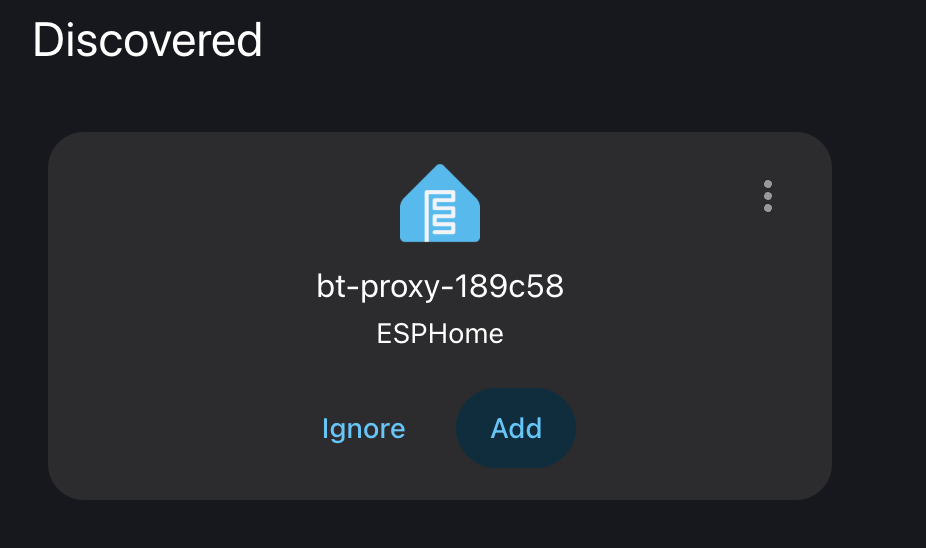
Once the proxy is running, Home Assistant discovers it on its own and shows it as ESPHome in the Discovered section. Paste the API encryption key, and that’s it.
Wrapping up
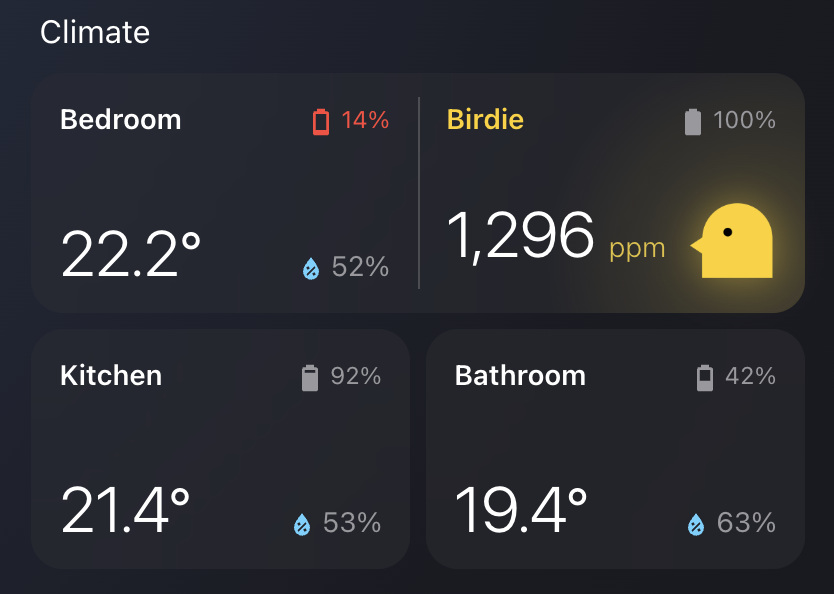
Now each room has its own card on the Home Assistant dashboard, with temperature, humidity and battery level.
So far, everything works well. I can’t say much about battery life yet, since I’ve only set it up recently.
Honestly, once you know the steps, the whole thing is pretty simple. The hard part was finding them. Hopefully this post saves you some forum digging :)
Here are the sources that helped me along the way:
- pvvx/ATC_MiThermometer - the custom firmware and the web flasher, originally created by atc1441
- Xiaomi Cloud Tokens Extractor
- ESPHome Bluetooth proxy docs
- Home Assistant BTHome integration
- Xiaomi MIJA thermometer LYWSD03MMC - current working integration? (July 2026)